

The University of Texas at Austin Athletics
Mobile Ticket Headquarters


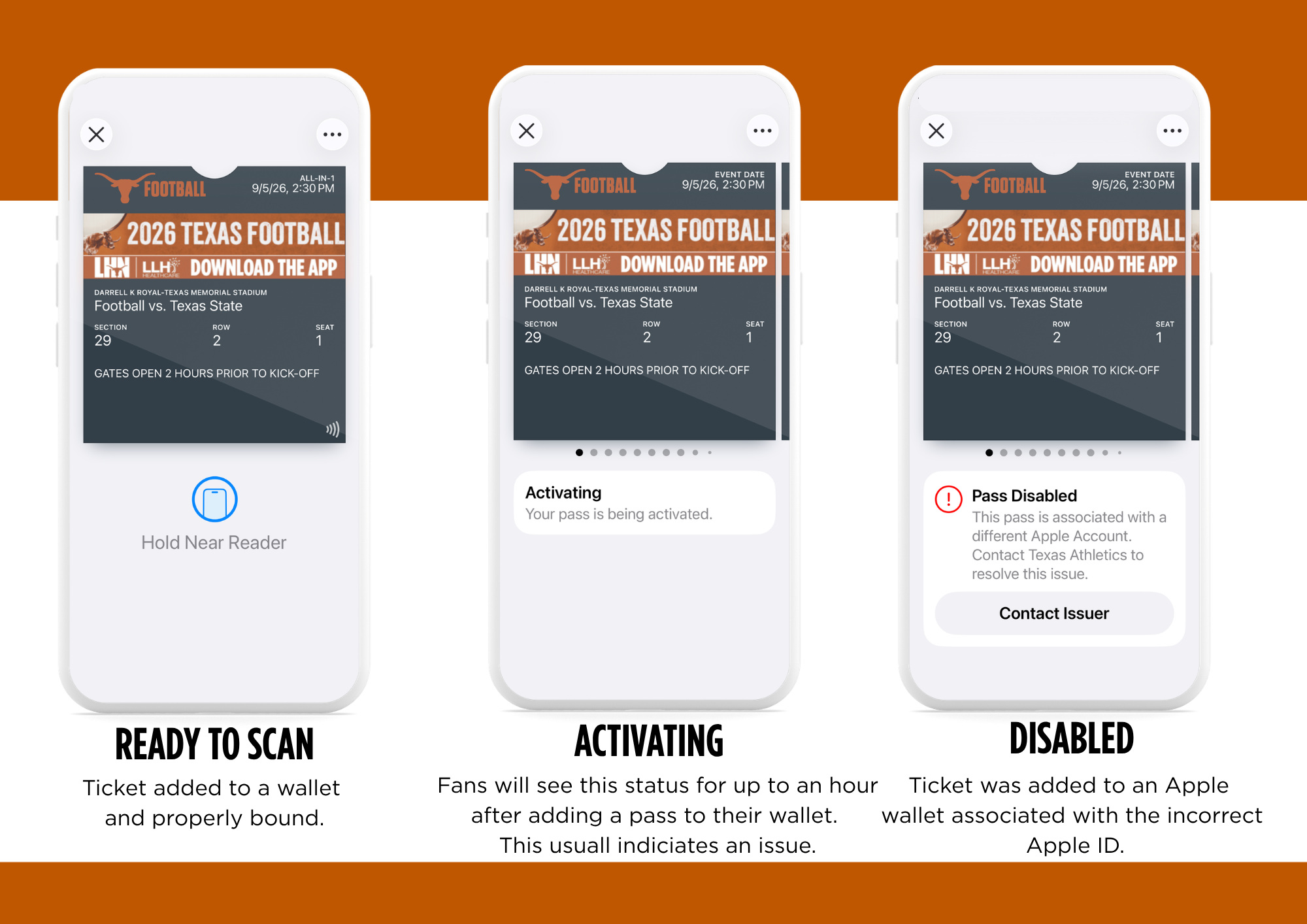
New for 2025, fans with Apple devices updated to iOS 16.4.0 or above will link wallet passes to their Apple ID. Fans will be prompted to a one-time action of linking their Texas Longhorn tickets account to their Apple ID account using Face ID or passcode. A Texas Longhorns ticket account can only be linked to one Apple ID.
Account Binding: Guide to Secure Mobile Tickets

Apple Binding Stages
It is essential to ensure that your Texas Athletics account information is secure. Please take a moment to review the suggested security enhancements below to help keep your personal account information and tickets secure.
Enhance Your Account Security
Create a Strong and Unique Password: Ensure your Texas Athletics account password is unique and not used for any other accounts. You can reset your password if needed. Below are the password requirements:
- 14 Characters
- 1 Number
- 1 Uppercase Letter
- 1 Lowercase Letter
- 1 Symbol
Ticket Transfer and SeatGeek Listings Protection
Effective immediately, a required one-time passcode (OTP) will be used to verify your identity for the following actions within your Texas Athletics account:
- Transferring tickets to friends or family.
- Listing tickets for sale on SeatGeek, the Official Fan-to-Fan Ticket Marketplace of the Texas Longhorns.
This passcode will be sent to the email address associated with your ticket account whenever a transfer or resale listing is initiated. This added step significantly enhances the security of your valuable season tickets against unauthorized access.
Additional Security Recommendations
Secure Your Email Password: Use a strong, unique password for your email account to prevent unauthorized access to your Texas Athletics account.
Verify Your Contact Information: Log into your account at TexasLonghorns.com/MyAccount to update your contact information, especially your:
- Primary Email Address: This is where your one-time passcode will be sent.
- Mobile Phone Number: A key channel for transferring tickets and receiving text messaging from Texas Athletics.
By keeping your contact information current, you ensure you can quickly receive and use your OTP to complete any ticket management action.
Beware of Scammers: Always use official channels to communicate with the Texas Longhorns. If you notice any suspicious activity on your account, please contact the Texas Athletics Ticket Office immediately at (512) 471-3333. Please note that you will receive email notifications from no-reply@texaslonghorns.paclive.com when a ticket is transferred out of your account and when a ticket is accepted by someone else. If you receive either of these communications without initiating a transfer, please contact the Texas Athletics Ticket Office immediately so that we can troubleshoot any potential security threats to your ticket account.
Student who purchase the Big Ticket with Football and Big Ticket WITHOUT Football access are eligible to attend Texas Athletic events.
Football
Students who purchase the Big Ticket WITH Football have the opporunity to claim a Student football ticket each week of the game. This ticket will be deliver to your Texas Longhorns account.
Baseball, Men's and Women's Basketball, Softball, Texas Relays and Volleyball
Students who purchase the Big Ticket WITH Football and Big Ticket WITHOUT Football are eligible to attend these Texas Athletics regular season events by using their physical UT ID at the designated student gate for entry.
FREQUENTLY ASKED QUESTIONS
Why did we eliminate printed tickets?
Adopting digital ticketing is all about maintaining a safe fan experience with quick and convenient entry into all Texas Athletics events. It also reduces the risk of lost, stolen, or counterfeit tickets and allows you to manage, transfer, or sell your tickets at any time directly from your smartphone.
Will mobile tickets be used just for football, or for all sports?
Mobile ticketing will be used for all sports.
Will parking be mobile as well?
Season parking passes will mobile for Baseball, Men's and Women's Basketball, Volleyball and Softball. Football will be mobile parking passes for Manor Garage, San Jacinto Garage, Brazos Garage, Trinity Garage, East Campus Garage, State Garage Q, State Garage R and Navy lots. All other season parking pass locations will be delivered via mail as hard copy passes for each game. Single-game parking passes will still be mobile.
Where is the barcode (QR code) on my ticket?
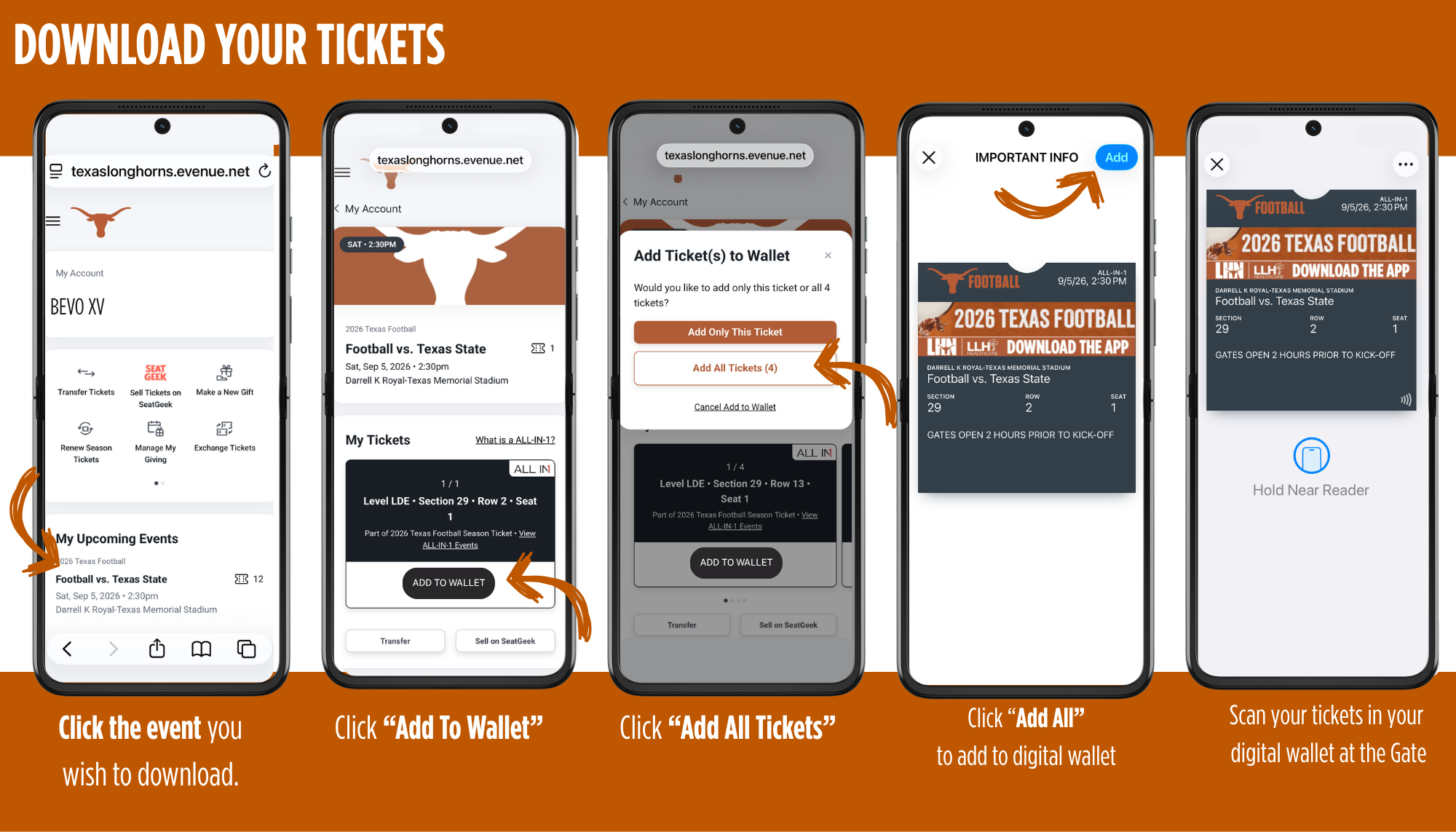
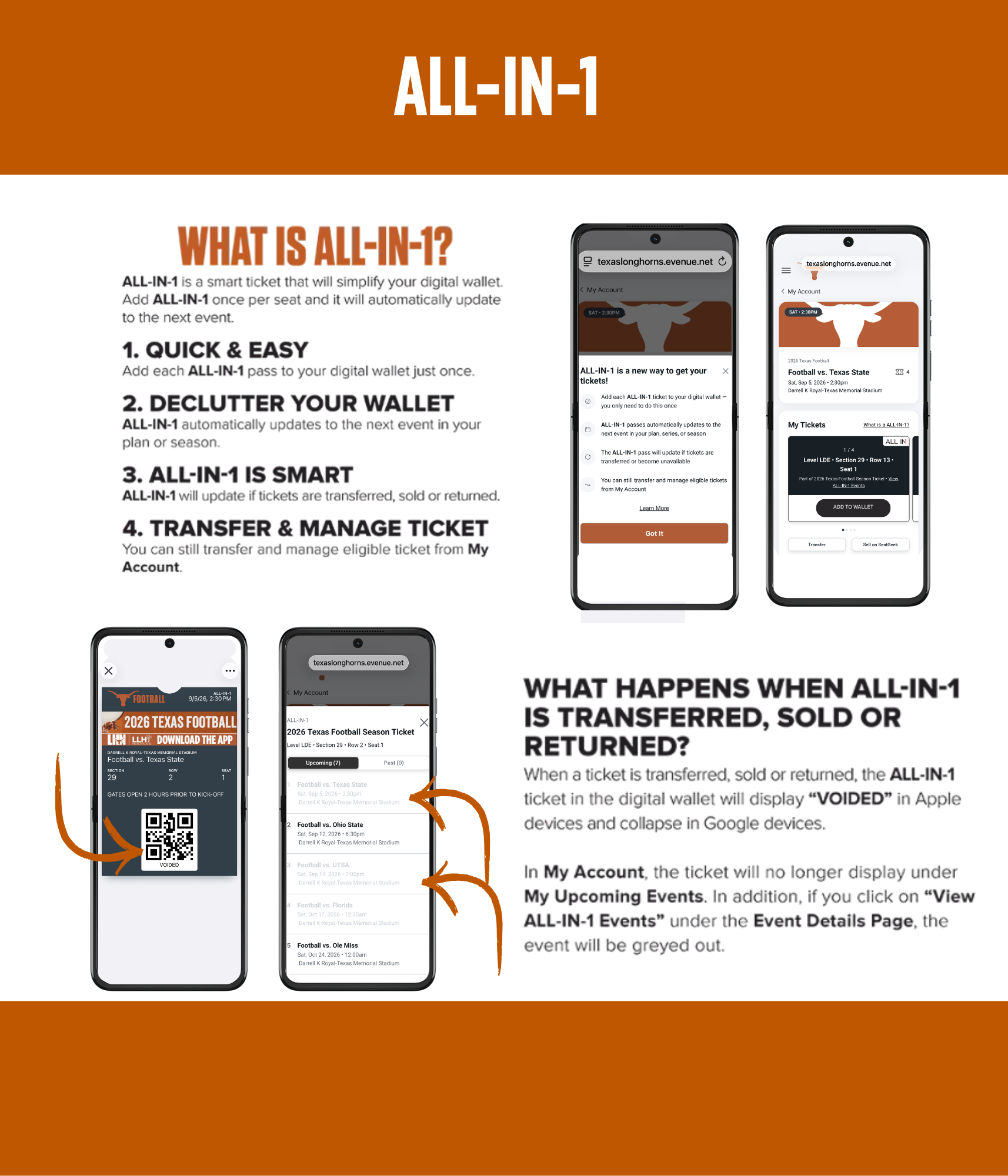
Texas Athletics utilizes NFC “Tap-to-Enter” tickets for all game tickets. You will not have a barcode (QR code), you will just tap your ticket at entry. Please note, screen shots DO NOT work with NFC tickets and tickets must be downloaded to your Apple Wallet or Google Wallet in order to scan. Parking passes will still utilize a barcode (QR code) to scan into garages adn lots.
When will tickets be available on my account?
Tickets for each sport will be available to manage a couple of weeks electronically before the first home game. For our fall sports, we expect them to be available electronically around mid to late August.
Once available, how do I access my mobile tickets?
You will still have the ability to manage your tickets through the Texas Longhorns app or online at TexasLonghorns.com/MyAccount. When downloading the app, fans will see an initial login screen to set preferences to receive a push notification for sports of your choice. This initial login screen is not tied to your Texas Longhorns account. Once notification preferences have been saved, fans can log in to manage their tickets by clicking on Tickets in the bottom right-hand corner and logging in using their email address and password tied to the Texas Longhorns ticket account.
Can I receive tickets on either an Apple or Android phone?
Yes. Both Apple and Android devices allow you to access your tickets via the official Texas Longhorns mobile app or TexasLonghorns.com/MyAccount. Your smartphone will also support the storage and quick retrieval of your tickets via a mobile wallet.
Can I send a screenshot of a ticket to someone?
No, the mobile tickets use NFC (near field communication) technology and a screenshot will not work. Please follow the link for a step-by-step guide to transferring tickets.
What if guest(s) and I arrive at the venue at different times?
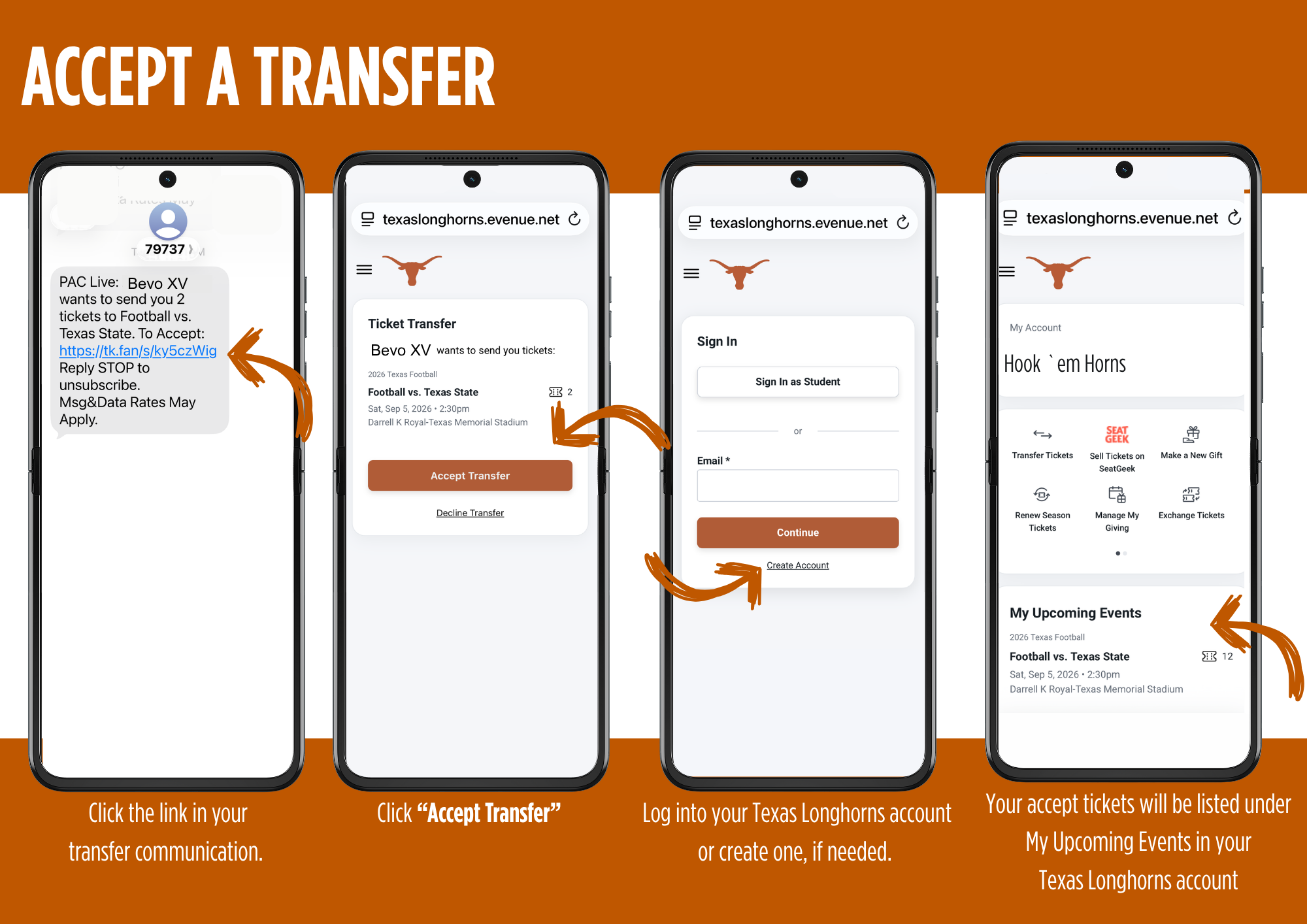
You’ll need to transfer a ticket to each member of your party. This allows you and your guest(s) to arrive at the venue at your convenience. Once the ticket transfer offer has been sent, they will receive an email instructing them to accept the ticket and add it to their digital wallet.
What if I lose/delete my ticket delivery email?
Log in to your Texas Longhorns account or the mobile app to access your mobile tickets. Tickets will be able to be managed within a couple of weeks of the start of each sport season.
Can I have multiple tickets on the same mobile device?
Yes. You can view all of your tickets by swiping left or right on your smartphone. We highly encourage you to transfer a ticket to each member of your party to allow for the easiest entry.
Can I easily transfer my tickets?
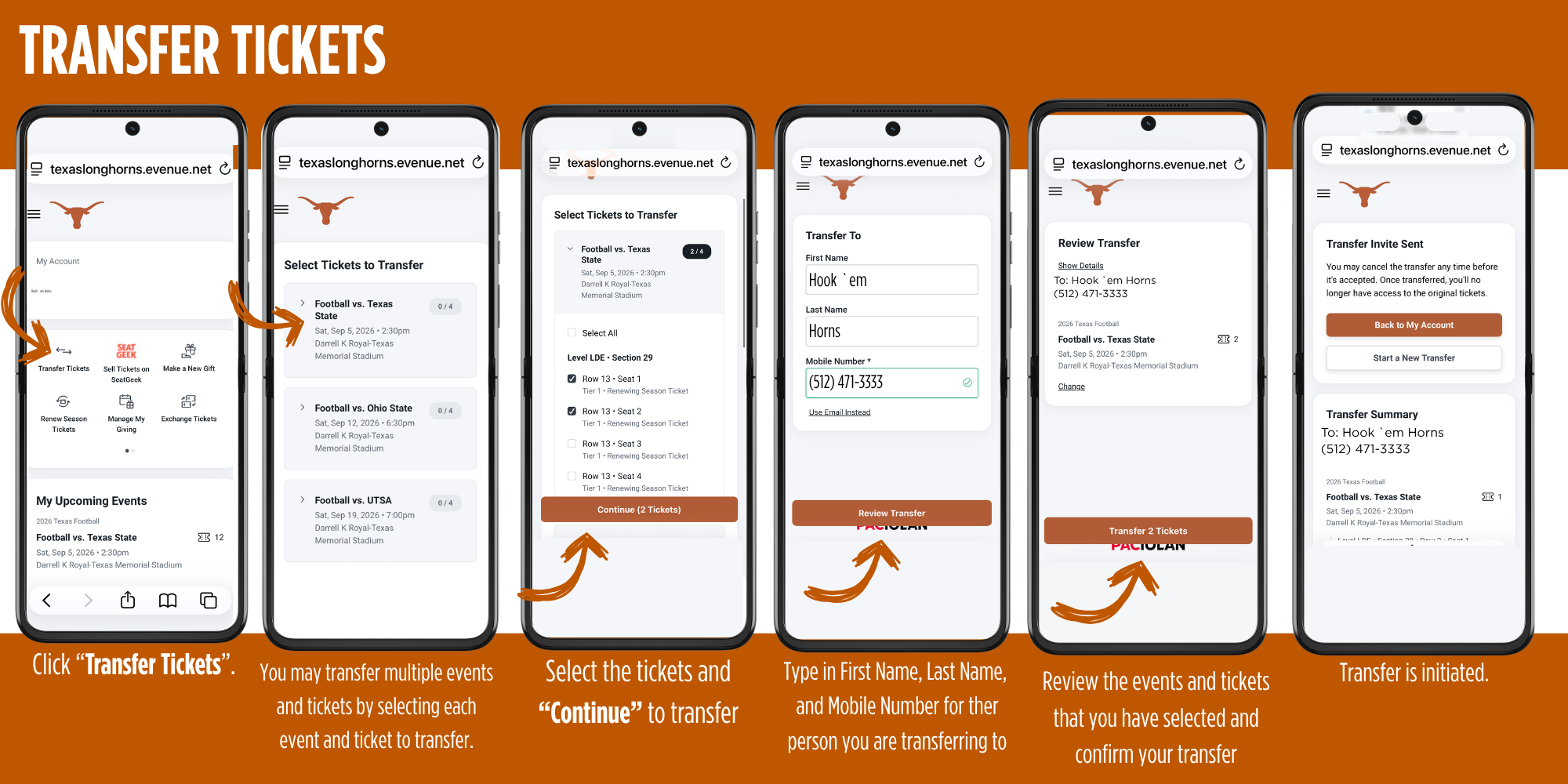
Yes, you can quickly transfer digital tickets to other fans. To transfer, simply
- Sign in to your Texas Athletics account within the Texas Longhorns mobile app or TexasLonghorns.com with your account and password
- Select the event and quantity of tickets to transfer
- Enter in the contact information requested to send to another fan of your choice
- You will be sent confirmation once the transfer is completed
Can I still re-sell my tickets on SeatGeek?
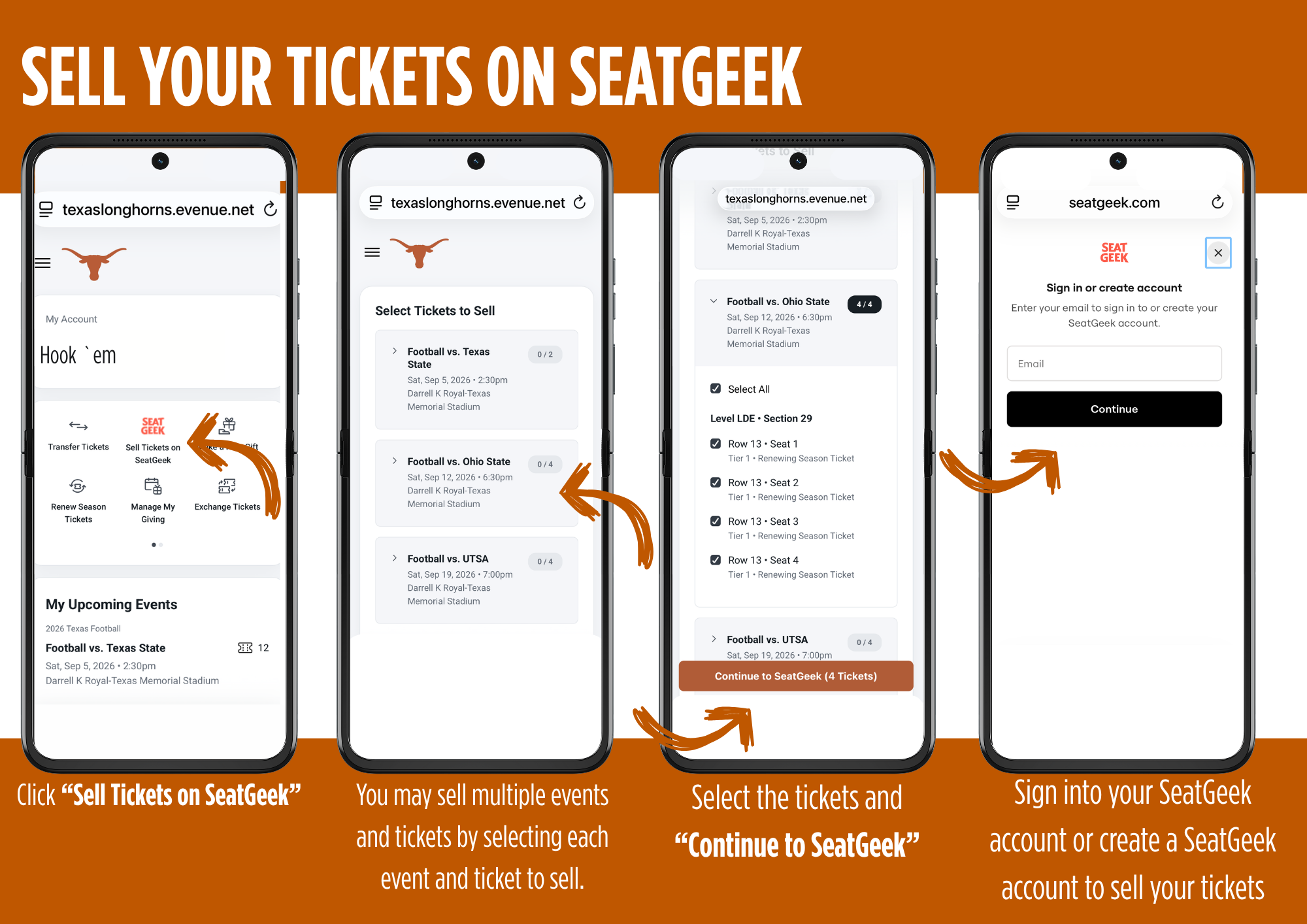
Yes, you can still re-sell tickets via your Texas Athletics account. This feature should go live once your tickets are printed. Please follow the link for step-by-step instructions on how to sell your tickets on SeatGeek.
What if I do not have a smartphone, or if my battery dies on game day?
For issues in advance of game day, please contact Texas Athletics Ticket Sales & Services at 512-471-3333, and we will assist in troubleshooting the problem. On game days, please visit our box offices at the venue and present a valid form of photo ID that matches the name associated with the account. We recommend fully charging your smartphone before you arrive.
I’ve read the above FAQ’s and still have questions. What should I do?
Please call our Ticket Sales & Services team at 512-471-3333 for additional questions Monday – Friday 9 a.m. – 4 p.m. CST.
GET THE MOBILE APP
Download the official app of the Texas Longhorns!
The official Texas Longhorns mobile app, supported by Apple and Android devices, is available for download for FREE via the App Store and Google Play and is the headquarters for digital fan engagement. If you already have downloaded the app, please make sure you download the latest update to access the latest features.
Through the Texas Longhorns app, fans have another option to access and manage game tickets for all regular season home events. All fans are encouraged to activate push notifications under "Manage Teams" on the app for important in-game alerts. To access the latest features, please download the latest update of the app in your phone's app store.
Having Trouble Accessing Tickets in the App?
We’re aware of an issue affecting some fans when loading the My Account section of the Texas Longhorns app. If this happens to you, please follow the steps below to get back into your account.
Steps to Fix the Issue:
If you see an “Unsupported Browser” message, tap “Got It” to dismiss.
If the My Account page doesn’t load, tap “Sign Out” (top right).
Note: It may look like nothing happened, but you’ll be signed out.
Tap the back arrow (top left) to return to the app home screen.
Select “Manage Tickets” to re-enter. You’ll be prompted to sign in again, and the My Account page should load correctly.
Note: These steps may need to be repeated each time you open the app.
Additional Troubleshooting:
Make sure you’re using the latest version of the app (check your app store for updates).
If no update is available, uninstall and reinstall the app.
Android users only: If the issue continues, clear your app cache:
Go to Settings > Apps (or Applications) > [App Name] > Storage (or Storage & cache) > Clear cache.